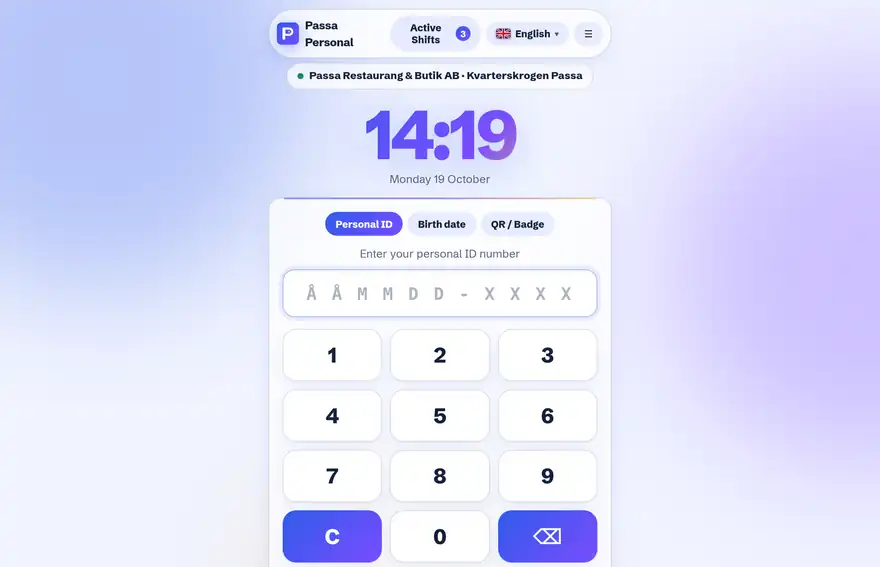
The punch terminal is the time clock on a shared device. Staff pick their name and enter their PIN code – those with a shift today appear at the top.
How to do it
- 1
Open the punch terminal
Go to your check-in address on the tablet or computer that will stand out front.
- 2
Clock in
Tap your name and enter the PIN code. The welcome message shows the time.
- 3
Clock out
Same thing when you leave – the day’s time is totalled right away.
Tip
Add the punch terminal as a home-screen shortcut (“Add to Home Screen”) and it opens like its own app, without an address bar.